
Using the synonym cards
Ten minutes to read, ready for class. Questions? Reply to the email that opened your access, or press Report in the tool.
1. Access and signing in
- After paying, sign in to eachtone.com with the email you paid with.
- No password needed: type your email in the sign-in box, press “Email me a sign-in link”, and open the link in your inbox.
- To sign in with a password (the Mac floating window needs one): press “Forgot password?” in the sign-in box, open the email link and set one. This works even if you never had a password.
- Open the tool: For teachers → Synonym cards at the top of the site, or go straight to eachtone.com/jinyici.
- Another computer or your phone: sign in with the same email.
2. Finding a set
- Search by word, pinyin, English or word partner. Pinyin needs no tone marks: tigao finds 提高; often finds 经常/常常/时常.
- Sets where the word itself belongs come first; sets that only mention it in a partner or an example come after.
- Two shelves: confusable words, and everyday verb families (切, 剁, 剪… with pictures). Tap to switch.
- Order: pinyin A–Z, or by level (the lowest HSK level in the set; words outside the syllabus are marked off-list).
- Index: press Index to see every set and jump to one.
- Keys: in the search box, ↑ ↓ pick a set and Enter copies the card; with the box empty, ← → switch shelves.
3. Reading a card
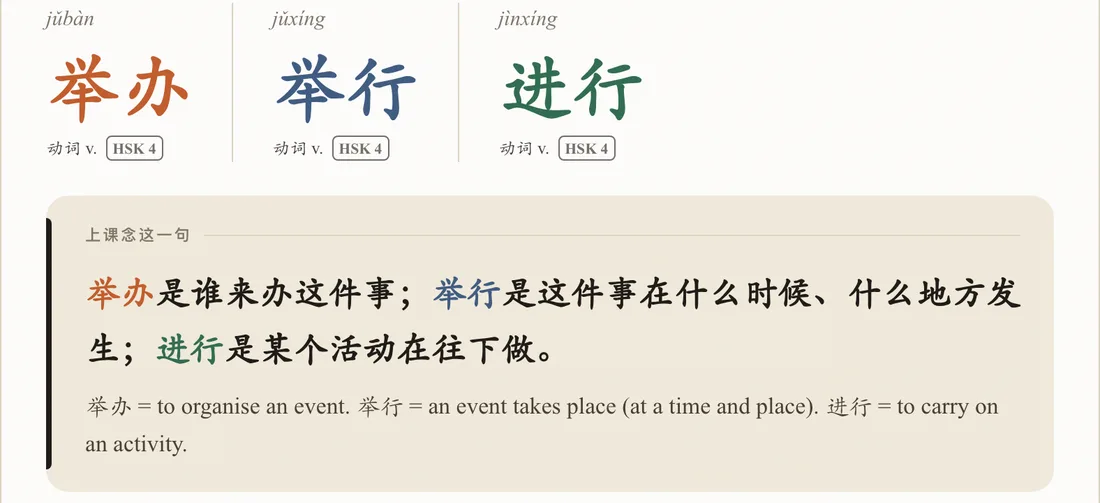
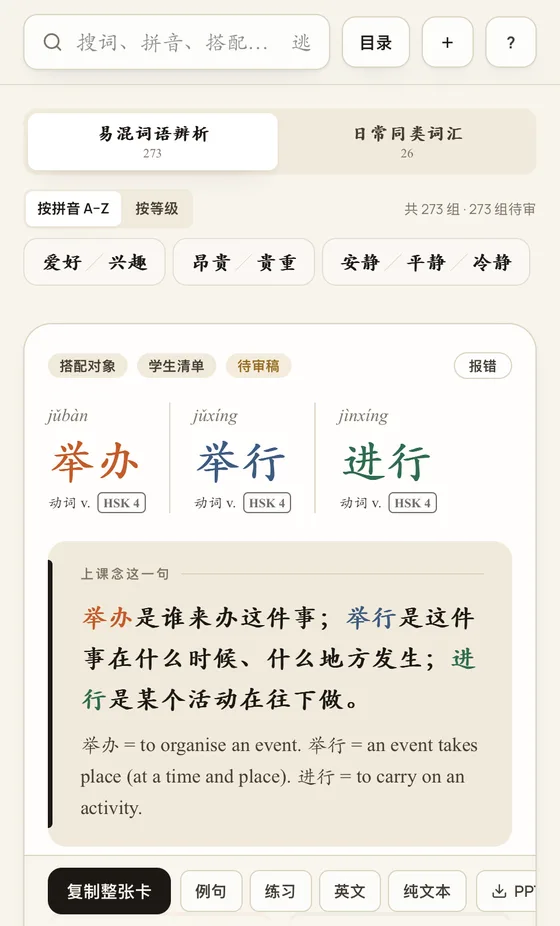
- Word heads: pinyin, an English meaning, part of speech and HSK level for each word.
- In common: what the words share and whether they usually swap, right at the top.
- Say this in class: the difference in one line, Chinese and simple English — read it out.
- Key differences: for sets of three or four words, the difference in two or three points, each with an example.
- Word partners: first the ones every word takes (any word can go in ~), then each word's own.
- Examples: six, with pinyin and English. The set's words are coloured; small tags say where both words work and where only one does.
- Students often say: a real mistake, ✗ beside ✓.
- Teacher's note: the boundary textbooks skip — the one a student will ask about.
- Exercises: six, each with a one-line reason.
4. Teaching from a shared screen
- Exercise answers are covered by default, so students see nothing on a shared screen.
- Tap an answer to reveal it; “Show all answers” opens them all and tapping again hides them.
- Let students fill in first, ask them why, then reveal and compare with the reason.
5. Into your slides: copy and PPT
- Copy the card: press “Copy the card”, switch to WPS, PowerPoint or Word, press ⌘V (Ctrl+V on Windows). It pastes with colours and fonts.
- Copy one part: Examples, Exercises, English or Plain text. Copied exercises carry the answers on the last line, easy to delete.
- Download the PPT: “PPT · Download 4 pages” gives card, examples, exercises and answers (the answers on their own slide).
- If a paste into WPS loses its colours, choose “Keep source formatting” when pasting, or use the downloaded PPT.
6. Pictures (everyday verbs)
- Cards on the everyday shelf carry pictures: tap to enlarge, ‹ › or the arrow keys to turn.
- Enlarged, “Copy this picture” pastes it into your slides; “Download” saves it.
7. Reporting a mistake, suggesting a pair
- This is a beta: every set is up, and I am still reviewing them one by one.
- Something wrong? Press Report at the top right of the card and tell me — I read every note.
- Want a pair added? Press “+ Suggest a pair” and write the words and the student sentence behind them. Once I approve it I write the card; it appears in the tool at no extra cost.
8. The Mac floating window
A small window that stays on top of WPS or PowerPoint, with this tool inside. No switching to the browser while you plan: search → copy → switch back and paste.
Needs macOS 12 or later; runs on Apple silicon and Intel. No Windows version yet — keep a browser window beside your slides.
- 1
Download and install
Download with the button above, double-click to unzip, and drag “EachTone 近义词悬浮窗” into Applications.
- 2
First launch
Double-click it. Your Mac will say it cannot verify the developer — the app is not in the App Store; it is not a virus. Press Done, open System Settings → Privacy & Security, scroll down and press “Open Anyway” under Security, then enter your Mac password. Only the first time.
- 3
Sign in
Press Sign in inside the window and use email + password (emailed sign-in links open in your browser, not in the floating window). No password yet? Press “Forgot password?” in the sign-in box to set one. You stay signed in next time.
- 4
Everyday use
A small icon holding a 词 book sits at the edge of your screen: tap to open, tap again to tuck it away; drag it anywhere. The window's red dot also tucks it away rather than quitting.
- 5
Copy and download
Press “Copy the card” in the window, switch to WPS and press ⌘V. PPT downloads go to your Downloads folder and are selected in Finder when done.
- 6
Quit or refresh
Right-click the icon: “重新载入” refreshes, “退出近义词悬浮窗” quits.
9. Questions
- Do sets added later cost extra?
- No. One payment, yours for good, including everything added later.
- Does it work on a phone?
- You can search and read. For copying into slides and downloading PPTs, use a computer.
- Signed in but still only three sets?
- Check that you signed in with the email you paid with. If not, reply to the access email and I will fix it.
- The Mac floating window will not open?
- The first time, press “Open Anyway” in System Settings → Privacy & Security. If it still fails, check that macOS is 12 or later.
- The floating window says it cannot reach the site?
- Check your connection, then right-click the icon → 重新载入 (reload).